
How to record meetings without a bot
By the Toolbay team · Updated
You don't need a bot in the call to get a transcript or notes. The simplest bot-free way is to record on your own computer: a local app listens to your microphone and your computer's own sound, so it captures everyone without ever joining the meeting or showing up in the participant list. Cereal does exactly this for free, keeps the audio on your disk, and writes the notes with a model that runs on your PC. Below are the three honest ways to do it, how to stop the common bot notetakers from auto-joining, and the consent rules that apply to all of them.
Recording other people has rules. Get agreement first; see the consent note below.
Three ways to take meeting notes without a bot
Every bot-free method records the sound your own computer plays and hears rather than sending a participant into the call. They differ in where that audio ends up and what they cost.
| Feature | Local recorder (Cereal) | Cloud bot notetaker | The platform's own recording |
|---|---|---|---|
| Does a bot join the call? | No | Yes, visible in the participant list | No, but everyone is notified it is recording |
| Where the audio goes | Your computer's disk | The vendor's cloud | Zoom / Teams / Meet cloud |
| Needs host rights? | No | No (it joins as a guest) | Usually yes, or the host must allow it |
| Works offline after setup | Yes | No | No |
| Cost | Free, open source (MIT) | Free tier then paid (e.g. Otter, Fireflies) | Included on paid plans |
A local recorder is the only one of the three with no bot and no upload. The trade-off is that the transcribing and note-writing use your own computer's time, so on a laptop without a graphics card the notes take a few minutes after a long call instead of seconds.
Why avoid a meeting bot?
A bot notetaker joins your meeting as a participant so it can record the audio. That means a visible “Otter.ai” or “Fireflies” attendee in the list, a vendor server holding your conversation, and sometimes an awkward moment when a client asks who the extra guest is. People increasingly decline or remove them. Recording locally sidesteps all of that: nothing new appears in the call, and the recording and notes never leave your machine.
Record on your own computer (the bot-free way)
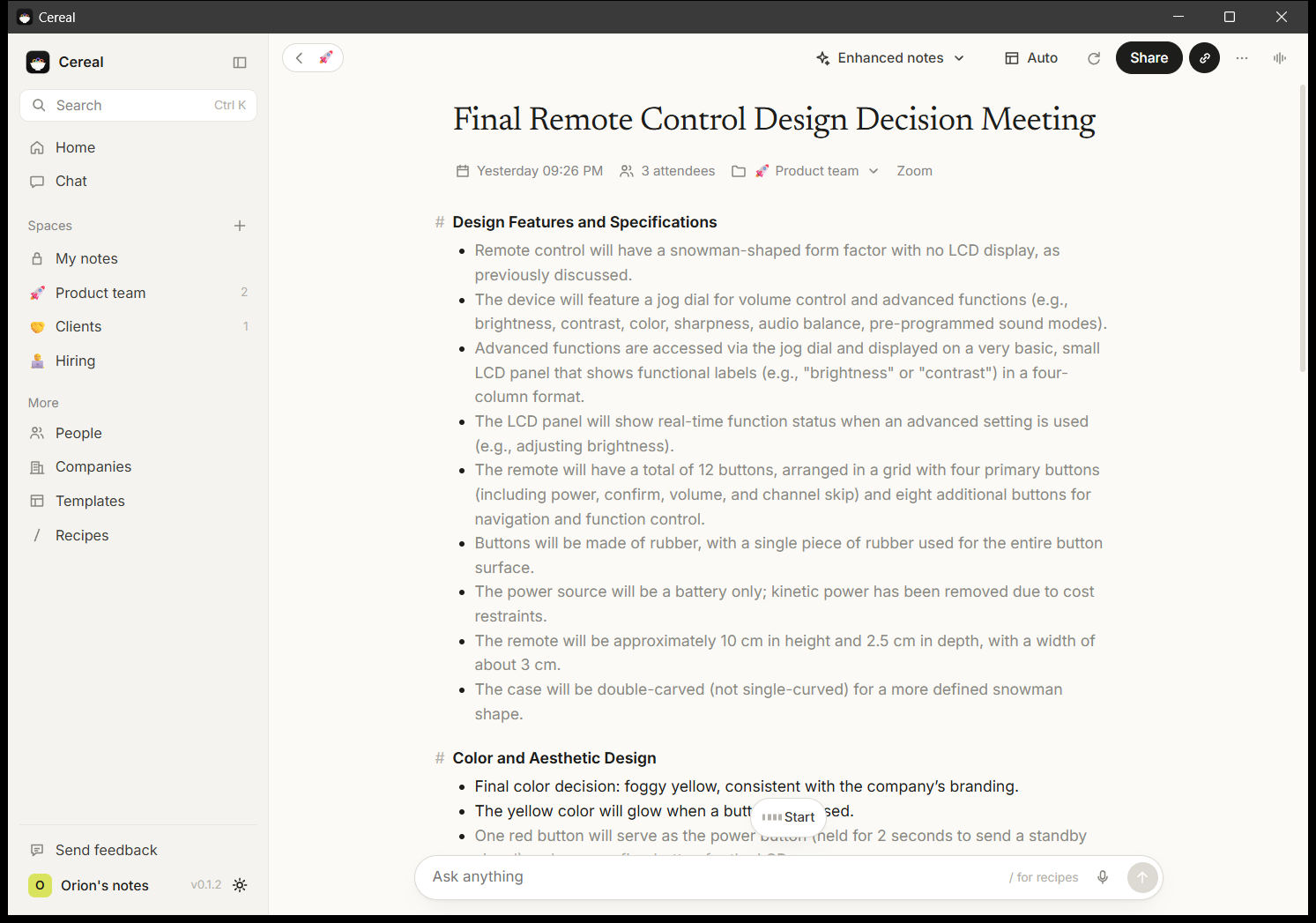
A local meeting recorder captures two tracks at once: your microphone and your computer's system audio (everyone else coming through your speakers or headset). Because it listens to your computer instead of joining the meeting, it works the same in Zoom, Google Meet, Microsoft Teams, Slack huddles, Discord or Webex, and no one sees a notetaker in the room.
In Cereal, a small prompt asks Take notes?when a call starts and nothing records until you click. You jot rough notes while a live transcript fills in; when the call ends it re-transcribes at full quality, separates the other speakers, and turns your notes plus the transcript into a clean summary with decisions and action items. Everything — the speech model, the speaker separation and the model that writes the notes — runs on your PC.
For the full comparison with a cloud notetaker — pricing, privacy and what you give up — see the free Granola alternative write-up.
How to stop Otter, Fireflies and Read.ai bots from auto-joining
Most bot notetakers join automatically because they are connected to your calendar: the assistant reads your events and sends its bot to anything that looks like a meeting. Two reliable ways to stop that:
- Turn off auto-join in the assistant's own settings. Otter, Fireflies and Read.ai each have a setting that controls whether their bot joins calendar meetings by default; switching it off (or disconnecting the calendar) stops the bot appearing uninvited.
- As the host, remove or block it in the call.You can admit from the waiting room only the people you expect, and remove a notetaker participant if one appears. On a meeting you don't host, ask the organiser to do the same.
Once no bot is joining, a local recorder like Cereal gives you the same transcript and notes without putting anything back into the call.
Get consent first: recording laws vary
Recording a conversation without a bot does not change the law about recording it at all. Many places require that everyone on the call agrees to be recorded (some US states need the consent of every party, not just one), and workplaces and schools often have their own rules. Tell people at the start, and get a clear yes.
Cereal helps with this: it reminds you each time it starts and gives you an editable line you can paste into the meeting chat to ask for agreement. This page is not legal advice; check the rules where you and the other people are.
Is there a free, no-bot note taker?
Yes. Cereal is free and open source with no paid tier, no meeting limit and no account, because nothing runs on our servers. Cloud assistants such as Otter and Fireflies have free tiers too, but they cap minutes or history and still send a bot into the call and your audio to their cloud. If “free and no bot” is the goal, a local recorder is the way to get both at once.
Related
- CerealFree, local, bot-free meeting notes
- Free Granola alternativeCereal vs Granola: free, unlimited, no bot
- Cereal vs GranolaTwo bot-free meeting notepads, side by side
- Free AI meeting notesBot-free, unlimited options that run on your computer
- Free AI notes for Zoom, Teams and MeetTake notes on any call without adding a bot
- Free Wispr Flow alternativeToolbay Flow vs Wispr Flow: free, unlimited, offline
- Free Obsidian Sync alternativeBedrock: encrypted sync for your vault, no subscription
- Vote on the next rebuildPick the paid app Toolbay rebuilds next
Granola is a trademark of Granola. Toolbay's tools are independent open-source projects, inspired by Granola, and are not affiliated with or endorsed by Granola.
Otter, Fireflies and Read.ai are trademarks of their respective owners. Toolbay is not affiliated with or endorsed by any of them; they are named here only to describe how bot notetakers work.