
Offline speech to text on Windows: 3 free ways
By the Toolbay team · Updated
Windows' built-in voice typing (Win + H) is not offline: Microsoft says it uses online speech recognition. To turn speech into text on Windows with no internet, use Voice Access (built into Windows 11 22H2 and later), Toolbay Flow (free dictation into any app with a local Whisper model), or whisper.cpp to transcribe recordings.
The options side by side
| Feature | Voice typing (Win+H) | Voice Access | Toolbay Flow | whisper.cpp |
|---|---|---|---|---|
| Works offline | No | Yes | Yes | Yes |
| Types into any app | Yes | Yes | Yes | No, it transcribes files |
| Cleans up filler words and punctuation | Auto-punctuation | Fluid dictation on Copilot+ PCs (English) | Yes, with a local AI model | Punctuation only |
| Controls the whole PC by voice | No | Yes | No | No |
| Languages | Many | Fewer; some need a download | 99, auto-detect | 99 |
| Setup | Built in | Built in (Windows 11) | One click in the Toolbay app | Command line |
| Best for | Quick dictation when online | Hands-free computer use | Fast everyday dictation | Transcribing recordings |
Why Win+H voice typing doesn't work offline
Voice typing sends your voice to Microsoft's online speech recognition and types back the result. In Microsoft's words, when online speech recognition is turned off, only device-based features such as Narrator stay available. So if voice typing says it can't connect, or your company has turned off online speech recognition, it simply won't start. That's also the quickest offline test: turn on airplane mode and press Win + H. New to dictation? Start with how to voice type on a PC.
Option 1: Voice Access (built into Windows 11)
Voice Access is Microsoft's accessibility feature for controlling the PC and dictating by voice. Microsoft says it works without an internet connection once its speech files are on your PC.
- Open Settings > Accessibility > Speech and turn on Voice access.
- The first time, let it download the speech model for your language.
- Say “Voice access wake up”, then speak to dictate into the focused text box, or say commands like “click Send”.
It needs Windows 11 version 22H2 or later. It's built for hands-free control of the whole PC; its smarter Fluid dictation mode is English-only and limited to Copilot+ PCs. You can also wake it withAlt + Shift + B.
Option 2: Toolbay Flow (dictation with AI cleanup)
Toolbay Flow is a free, open-source dictation app. Hold Ctrl + Win in any app, talk, let go, and the text appears. It runs OpenAI's open Whisper speech models through whisper.cpp on your own PC, then a small local language model removes “um”s, fixes self-corrections and adds punctuation. Nothing is sent anywhere unless you add your own cloud API key.
- Install the free Toolbay app, then Toolbay Flow in one click. Flow comes with a starter English model, so it works offline from the first launch.
- Open Flow, test your microphone and shortcut in the setup screens.
- Flow then picks a bigger, more accurate model for your hardware and downloads it once. After that, no internet is needed.
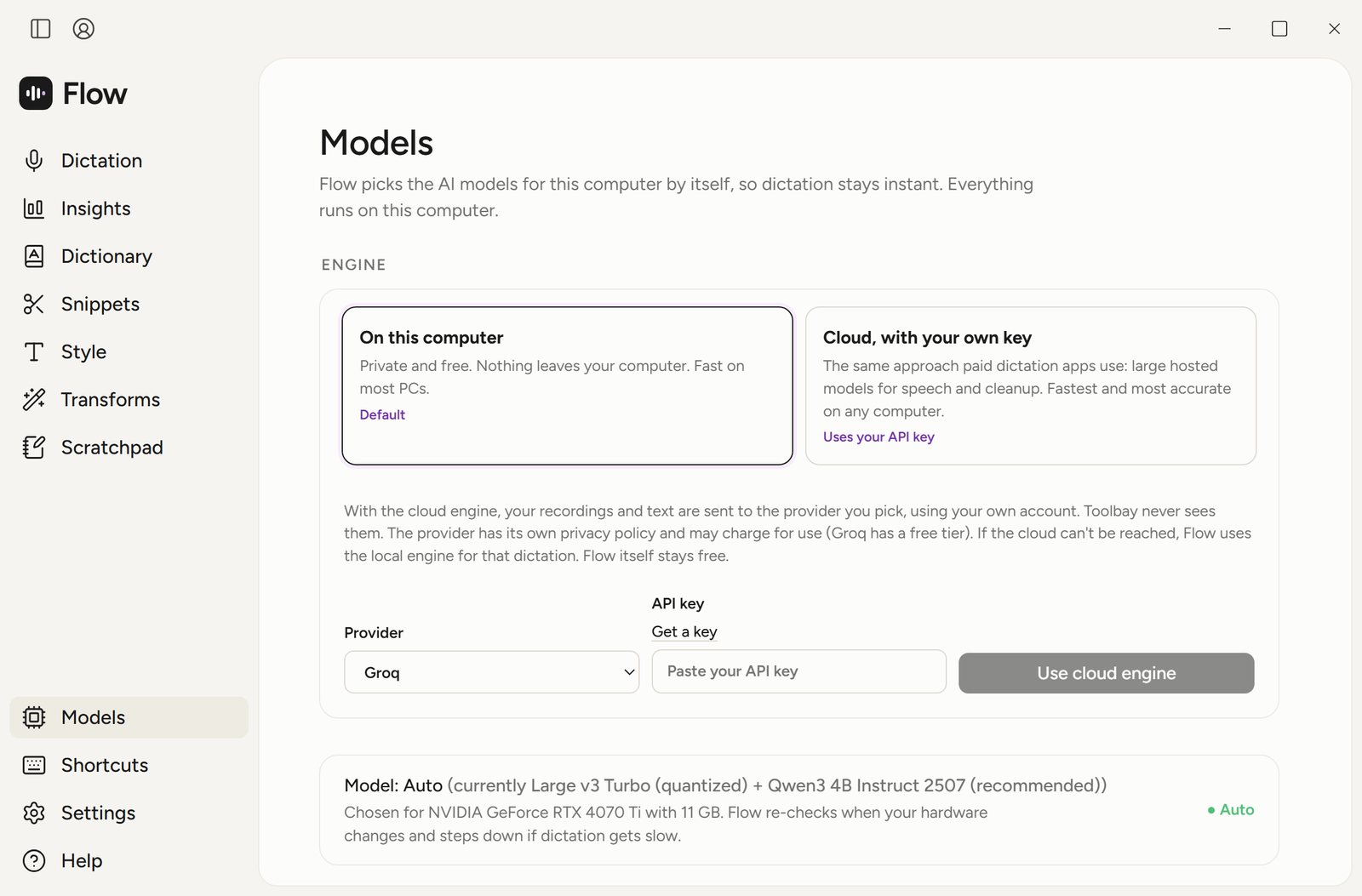
Coming from a paid app? See how Flow compares with Wispr Flow.
Option 3: whisper.cpp (transcribe recordings)
If you have audio files rather than live dictation, the open-source whisper.cpp project runs the same Whisper models from the command line, fully offline.
- Download a Windows build from the project's GitHub releases and a model file (for example
ggml-base.en.bin). - Run
whisper-cli -m ggml-base.en.bin -f recording.wav. - Add
-otxtto save the text next to the recording.
It's the most flexible option and the least friendly: no app, no typing into other programs. Recording meetings instead? Cereal records and transcribes calls on your PC.
Which one should you use?
- You want to control Windows by voice, not just type: Voice Access.
- You write a lot (emails, chat, documents, code) and want clean text fast: Toolbay Flow.
- You have recordings to transcribe and don't mind a terminal: whisper.cpp.
- You're online and want zero setup: Win+H is fine.