
How to voice type on a PC: dictate into any app
By the Toolbay team · Updated
Click into a text box and press Win + H to open Windows voice typing, then talk. That is the built-in way to turn speech into text on Windows 10 and 11; it needs an internet connection. For hands-free control of the whole PC use Voice Access (Windows 11), and for a hold-to-talk hotkey that cleans up your text in any app use Toolbay Flow, which is free.
Three ways to dictate on Windows
| Feature | Voice typing (Win+H) | Voice Access | Toolbay Flow |
|---|---|---|---|
| Shortcut | Win + H | Alt + Shift + B to start it, or turn it on in Settings | Hold Ctrl + Win, talk, let go |
| Works offline | No | Yes, after its speech files download | Yes, with local models |
| Where it types | The text box that has focus | The text box that has focus | Wherever your cursor is, in any app |
| Cleans up filler words | No | Fluid dictation on Copilot+ PCs (English) | Yes, with a local AI model |
| Also controls the PC | No | Yes, by voice commands | No |
| Windows versions | Windows 10 and 11 | Windows 11 22H2 and later | Windows 10 and 11 |
Voice type with Win+H
- Click into the place you want text: a document, an email, a browser box.
- Press Win + H. A small microphone panel appears.
- Wait for it to say it is listening, then talk. Say punctuation out loud, for example “period” or “question mark”.
- Press Win + H again, or click the microphone, to stop.
If nothing happens, check that a microphone is selected under Settings > System > Sound and that online speech recognition is on under Settings > Privacy & security > Speech. Microsoft says voice typing uses online speech recognition, so it stops working when you are offline or when your organisation turns that setting off.
Voice Access: dictate and control Windows 11
Voice Access is Microsoft's accessibility feature. It dictates text and also clicks, scrolls and opens apps from spoken commands such as “click Send”.
- Open Settings > Accessibility > Speech and turn on Voice access.
- Let it download the speech model for your language the first time.
- Say “Voice access wake up”, click into a text box and talk.
It needs Windows 11 version 22H2 or later. It is built to run the whole PC by voice, which is more than most people want when they only need to write an email. Offline details are in offline speech to text on Windows.
A hold-to-talk hotkey that works in any app
Toolbay Flow is a free, open-source dictation app. Click where you want text, hold Ctrl + Win, talk, and let go. The text is pasted where your cursor was after a local AI model removes “um”s, fixes self-corrections and adds punctuation. Speech recognition runs on your own PC with Whisper models, so it works offline, and there is no word limit.
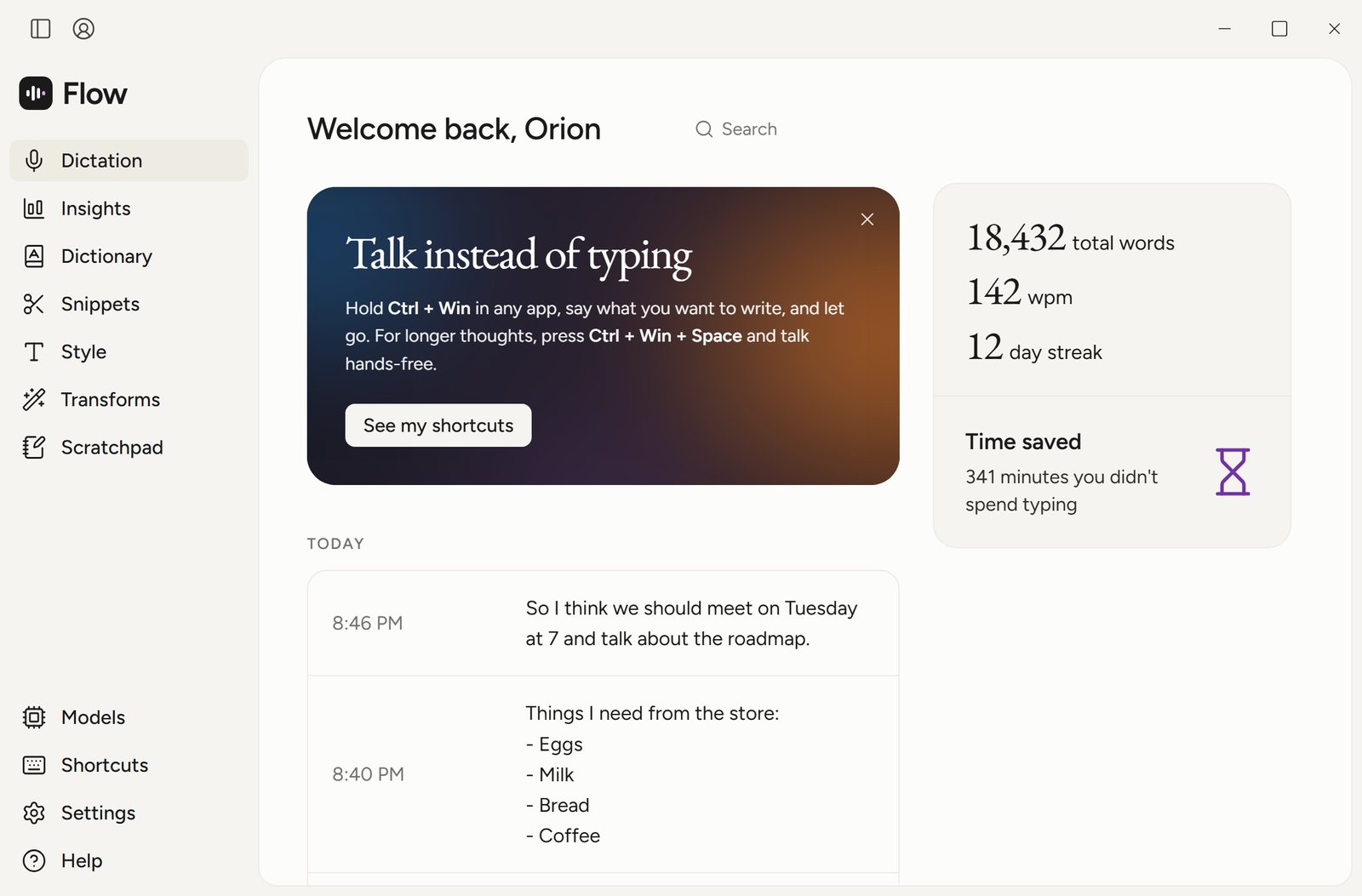
On our test PC (Windows 11, RTX 4070 Ti, 20 runs, including AI cleanup) the text appeared a median of 159 ms after releasing the key for a 3-second clip, and 845 ms for a 30-second one. A PC without a graphics card will be slower. For a longer thought, Ctrl + Win + Space starts hands-free mode. Paying for a dictation app now? See the free Wispr Flow alternative.
Tips for cleaner dictation
- Use a headset or a desk microphone; a laptop microphone picks up fan and keyboard noise.
- Speak in whole sentences at a normal pace. Pausing mid-sentence breaks punctuation in every tool.
- Dictate first, edit after. Fixing words while you talk is slower than correcting a finished paragraph.
- Say the names and jargon you use often into a tool with a personal dictionary so it learns them.